Showing posts with label internet marketing. Show all posts

Monday, 23 March 2015

Share your circles to your Google My business page


Share your Circle to your GMB page


Google have created a way in which you can share an entire circle from your personal profile to a recipient.


So if you have organized your contact into Business related circles, these circles or groups of people now need to be shared to your GMB page.


By doing so you can then communicate directly to a specific group with a special offer, am evening invite, an event or a product launch.....

This is also useful to be able to share company contacts, friends and family members, or just interesting people in a field that you care about.

Now that your contacts have been imported and you have categorised your lists of contacts into circles or groups, you can then share particular circles to your GMB page.


To share one of your circles:


1 . Hover over the ‘Home’ icon on the left-hand side of your screen (while in Google+)


2 Click on the ‘People’ link 


3 Click ‘Your Circles’ at the top of the screen 


4 Click on the circle you want to share 


5  After everyone appears, the icon you clicked on should turn black


6 Hovering over the icon will show options to Edit, Share or Delete the Circle.

7 Click on the swoosh 


8 In the 'TO:' field type in YOUR OWN  GMB page name / business name


***ENSURE THAT ALL OTHER NAMES ARE REMOVED FROM THIS FIELD AS YOU COULD SHARING  A GROUP OF CONFIDENTIAL BUSINESS CONTACTS****


Click Share!!


9 Your circle has now been shared to your GMB profile. You will receive a notification when accessing your GMB page.

10 Access your Google My Business page profile


11 Click on the 'new notifications' indicator (top right corner)


12 Click on View post...


13 Click on Add People..


14 Type in the name that you want to call your new circle and then click the blue button to create the circle

2.


Your imported circle will now be held within the your circles within our Google My Business page. 

You can now communicate from your Business, as your Business,  to the contacts held within the circle only!


For further information on other products and services  please visit our website. www.addpeople.co.uk


Monday, 2 February 2015

Setting Up Mobile Notifications For Your GMB Page

Once you have your Google business page set up it's important to keep up with the maintenance and management of the page.  If you're a business owner then your schedule is probably pretty fully booked and you may not have time to be regularly logging in and checking your page.

That's where mobile notifications will really be of benefit to you.

When you set up mobile notifications on Google you will be alerted whenever something happens on your business page.  This could include a new review, comment or message on your page.

Setting up notifications means that you can respond to messages promptly to improve your followers' experience and to keep your page professional and your online reputation intact.

Ok, so now you know the benefits of mobile notifications, let's get them set up!

You can either follow the instructions in the tutorial video below, or alternatively refer to the step-by-step text instructions and screenshots in this post.


The first thing you need to do is, access your Business page (as demonstrated in our first video tutorial.)

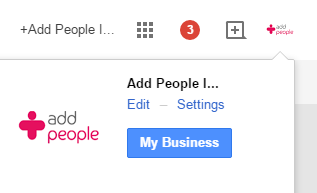
Once you're on your business page, click on your business' icon in the top right-hand of the page, and then select 'Settings'.


Scroll down to the section called 'notification delivery'.


Click 'add phone number', enter your details and click 'send verification code'.


You will then receive a pin code to your mobile.


Enter the pin into the box provided and click 'confirm'.

You now have mobile notifications set up to your mobile phone.  This means that when you receive reviews or comments on your Business page you will be alerted directly through your phone enabling you to instantly respond or take action.

For more help and advice with your digital marketing please visit our website www.addpeople.co.uk.

Tuesday, 27 January 2015

7 Clever Ways To Gain Followers On Your Google Business Page

browser
Google business pages are fast becoming the must-use social networking tool for savvy business owners wanting to grow their company online. Use this platform to build your social presence and connect with customers, gain new followers and actively market your brand, whilst improving your network of contacts at the same time.

If you're making the most of your social network then it shouldn't be too difficult to attract new followers to your business page. To maximise the potential of your Google Plus presence, use these seven proven practices to gain a healthy following and generate positive results.

1. Create a captivating headline
Make posts SEO-friendly and start with a dynamic headline. Capture the imagination of the reader with a punchy opening statement.  Make it informative, catchy and hard to resist and you’ll attract attention from the off.

Amazing headlines are enticing, informative and speak directly to the reader. Optimise them with keywords and outline the reader’s expectations from the beginning. Give them a reason to want to want to read your post and follow you online.

Headlines fall into a number of categories. Examples of these are:

Lists... ‘10 ways to enhance you Google presence’
• How to’s... ‘How to add images to Google My Business in easy steps’
• Calls to action – ‘Do this to improve your social networking skills’
• Informative – ‘Try these suggestions and grow your business online’

Use power words to drive attention to your headline. ‘Mind-blowing’, ‘Amazing’, ‘Jaw-dropping’ or ‘Surprising’ are just a few examples you might want to try.

2. Grab attention with quality imagery
Badly taken photographs have a negative impact online. Blurry, out-of-focus shots taken with a low resolution camera or smartphone are unlikely to do your products and services any favours.

Google provides you with the perfect medium to share pictures, and it has a very useful editing tool too. Use this to your full advantage, pick good quality images to grab attention and make full use of Google’s ‘Auto Awesome’ and ‘Auto Enhance’ functions, they’ll magically create captivating images ready for you to share with followers online.

Make the experience visually appealing for your followers to generate a loyal fan base.

3. Format the text
Carefully configure the text on your business page. It’s worth spending a little time optimising this area before you start posting content to readers. Populate your page with quality content and carefully format the text using the full array of tools at your disposal.

Tips to help you format text include using bold, italics or strike-through for posts. Hints to help you achieve this include:

Use two asterisks around text to create a bold impression: *bold*
Place two underscores either side of text to turn it into italic: _italic_
Place text between two hyphens to add a strike-through: -
strikethrough-

You could create numerical lists or bullet points for posts making them easy to read for interested parties. Like the one above! Or get text noticed using hashtags.

4. Make the experience engaging using ‘poll' features on posts
Get people involved with your page. Use polls, surveys or simply post a few questions to generate comments and expand the amount of interest shown in your page. The more user-interaction you create on your page the greater chance you have of building a healthy following.

Polls are good devices to gain opinion. You can use them to get feedback from your friends about the latest Broadchurch episode or create a debate about a hot topic within your industry. Start a poll, get followers involved and this could spread to their wider circles creating a host of new followers for your page.

5. Follow relevant people/businesses to encourage followers back
Spend time searching for movers and shakers within your industry. Start to follow people that are relevant to your business or simply look for people that seem to be on the same wavelength as you. When you find articles of interest use the +1 function, share posts and add positive comments to actively engage with the wider community.

Add people or businesses to your circles to gain a healthier exposure. Start following as many people as you can and a high proportion of them should follow you back.

6. Give something away for free
Regularly keep your Google page updated with offers and promotions from your business. You could encourage followers to share your page and make the community aware of your freebies, driving interest to your site with the promise of great giveaways.

GMB is a great place to advertise future offers. Post comments with links to your site and use regular promotions to attract a new following.

7. Check for trending topics using the ‘explore’ feature
Keep up to date with hot topics within your target industry. See what’s trending at the moment and use this as a basis for future posts.

Do a little digging, read current posts from the wider community to establish useful subjects and themes, whether they are related to your industry or not. It’s okay to post something that’s a little off-the-wall from time to time to encourage a new following. Use trending topics to link and connect with other people.

What tips will you be using to gain new followers on Google in 2015? Tell us at Add People, we’d love to hear your comments!

Wednesday, 21 January 2015

Posting to your Google 'My Business' page


Once your business page is all set up and looking the part it's important not to fall into the trap of leaving it dormant.  Your Google My Business page is a social tool so make sure you're posting interesting content and engaging with your audience on a regular basis.

In this post we will show you how to make a simple post.  

Watch our short video walk-through below and then use the screenshots and text below for reference. 


First of all make sure you've logged in and navigated to your business page’s dashboard just like we showed you in video 1.


Once you’re on your dashboard you’ll see a box that says ‘share what’s new’ or 'share an update'.  You can create a post here, or alternatively you can do it directly from your business page.  


To get to your business page hover over where it says ‘My Business’, and click ‘Google+ Page’.


From here you can create posts in a variety of formats including links, videos, images, events and polls.  Simply select what it is you’d like to share with your audience and follow the instructions on screen.


For example. If you’d like to share a link to a blog or any webpage that you feel is relevant and of interest then just click where it says ‘link’.


Copy and paste or type the URL of the webpage that you’re sharing here and it will show you how your link will appear.  


Now write a message to introduce or say something brief about the link that you’re sharing.

Once you’re happy with your post, specify who you’d like to share it with. In this case we’ll simply share it publicly so that anyone can see it.  Now click ‘share’ and you’re finished! 


Your post will now be shared on your business profile and in search results.


Should you make a mistake or wish to delete your post hover your mouse over the top right-hand corner of the post and a little arrow will appear.  Click the arrow to view editing options.


At Add People we encourage our clients to think carefully about the content that they're posting to their business page.  Before you hit 'share' make sure that the content is either going to be of interest or value to your audience and is relevant to your business.

We'll explore posting in more detail later in this blog so look out for more information on how to create effective posts.


For expert advice about Google My Business speak to one of our friendly advisors by calling 08450 30 44 44 or email the team at: marketing@addpeople.co.uk